





Using slasher
Installation
For the moment, the only way to use slasher is to download the source code from the Github repository (https://github.com/astrom-tom/slasher - using the ‘clone or download’ button and download as zip). To make it work you have to use python 3.9 with the following library and versions:
PyQt5 v5.15.4: The is for the graphical interface
Matplotlib v3.4.3: This is for the plotting area.
catscii v19.8.1: catalog handling
astropy v5.0.1: For fits image opening
Cutter is available in the pypi repository. To install it:
1pip install slasher --user
The help
You start slasher from a terminal. The program comes with a help that you can display in your terminal using the help command. Use it like this:
[user@machine]$ slasher --help
This will give you the following output:
This command will display the help of the program::


usage: slasher [-h] [-f FILE] [-d DIRE] [-w WIDTH] [--version]

slasher, R. Thomas, 2022, This program comes with ABSOLUTELY NO WARRANTY; and is distributed under the
GPLv3.0 Licence terms.See the version of this Licence distributed along this code for details. website:
https://github.com/astrom-tom/Photon

optional arguments:
  -h, --help            show this help message and exit
  -f FILE, --file FILE  Your catalog of data to visualize, this is mandatory, this is mandatory if you do
                        not use -p option
  -d DIRE, --dire DIRE  Directory where the original spectra are located
  -w WIDTH, --width WIDTH
                        Width of the GUI, default = 780
  --version             display version of slasher
In details it means:
Cutter must run with a catalog. If you do not give slasher one, it will complain (you can see below for the format of the file you can provide slasher with).
Few arguments can be used:
-f: this is a catalog of spectrum you want to display
-w: width of the window: The GUI is not resizable. Which means that the size of the plot is pre-fedined. By default the width of the window is sized at 780. Using this option, (e.g. -w 1080) will resize the GUI with a width of 1080.
-d: Path to the directory where the original spectra are located
–version: Display in terminal the current version of the software
Catalog format
For the current version, slasher accepts only ascii catalogs of columns and fits files. Some precisions:
The catalog must contain at least 3 columns and 2 lines.
The first column must be the name of the spectrum in fits format (more on that below)
The second column must be the name of the noise spectrum in fits format.
The third column must be the redshift column (can be filled with -999 if you don’t have redshifts).
Each line must contain the same number of columns.
The Graphical User Interface
When starting slasher, the graphical interface shows up in the screen (Screenshot below).
It is composed of five area:
The plotting Area, at the top, where you will cut the spectra.
The table: This is where your input catalog is displayed. There is one extra column called ‘Already Cut’. If yes, a cut spectrum already exists in the destination folder, if ‘No’, no cut spectrum exists in the destination folder.
The button area:
Prev spectrum allows you to go to the previous spectrum in the list
Next spectrum allows you to go to the next spectrum in the list
Save spec: allows you to save the cut spectrum
Original and destination folder: the original folder is where the original spectra are stored. The destination folder is where the cut spectra will be saved.
Search table: to find faster elements in the table you can use this field to write elemtns you want to find in the table. Press enter to search.
Check: This will check, for each line in the table if a cut spectrum exists in the destination directory.
Xlow and X high: The limits, in wavelength of the cut spectrum.
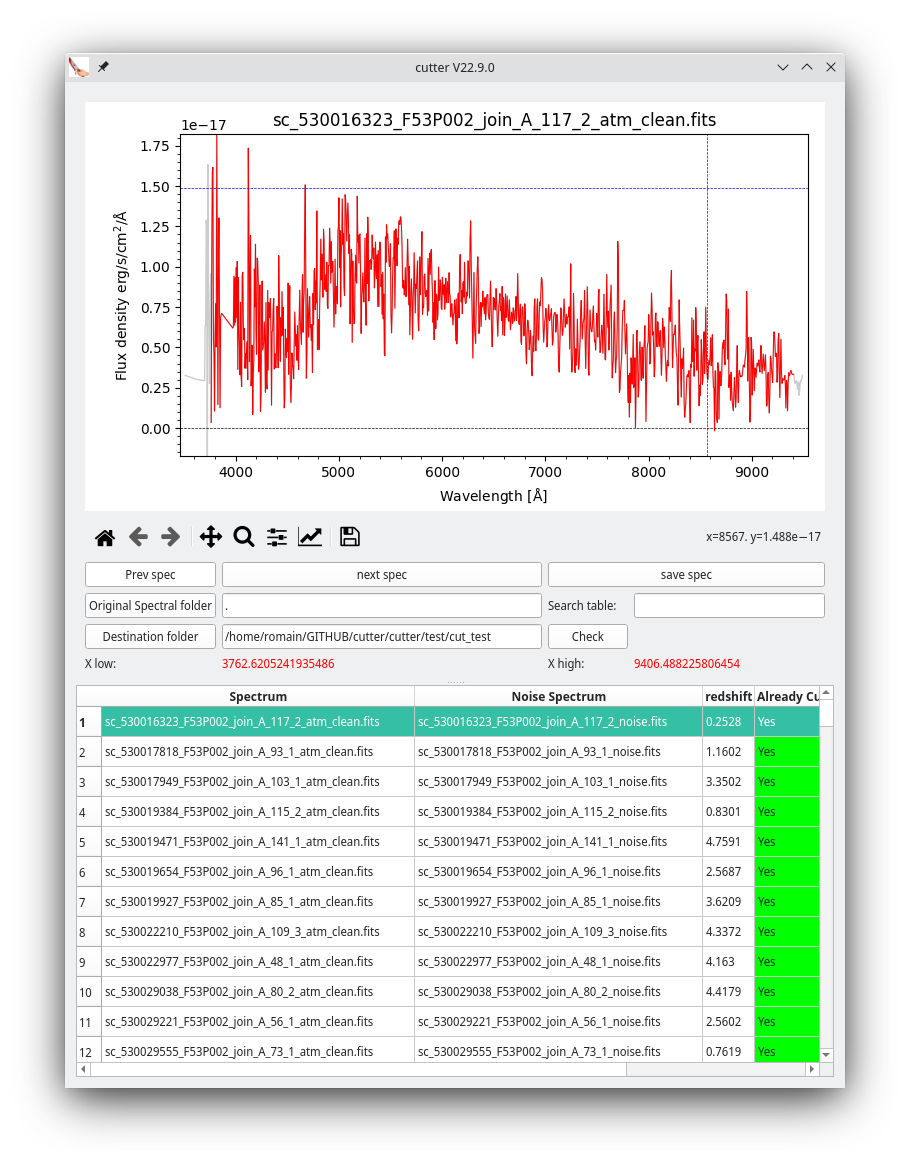
GUI of slasher
Cutting a spectrum
Once loaded a spectrum is displayed in gray. To cut it you need to click twice, once on a low wavelength and once on a high wavelength. The two wavelength will be displayed in red in the Xlow/Xhigh area of the GUI (see above). The region between the two spectra will be highlighted in red: this will be the cut spectrum. Once cut, you can press the ‘save spec’ button to save it on disk.
In order to fasten the process you can use the following keyboard shortcut:
‘n’: next spectrum
‘p’: previous spectrum
‘s’: save cut spectrum
Spectrum format
TO be able to be loaded in slasher, a spectrum needs to be in fits format and contain the following header keywords:
CRVAL1: first wavelength
CRDELT1: delta in wavelength between two points
NAXIS1: The number of wavelength points.